
Credit cards
A picture-by-picture guide to card spending, covering overspending, setting money aside, and paying the card.
A credit card purchase happens in two parts. First you buy something with the card. Later you send cash from checking to pay the card. Pocketwatch keeps those moments connected so your budget knows what you spent and how much cash is ready for the payment.
1. Add the purchase to your card
In this example, the Capital One card begins with a $1,500 balance owed. A $15 Starbucks purchase is added to the card and categorized as Dining Out. The card now shows -$1,515 because the amount owed grew by $15.

2. The purchase appears in your budget
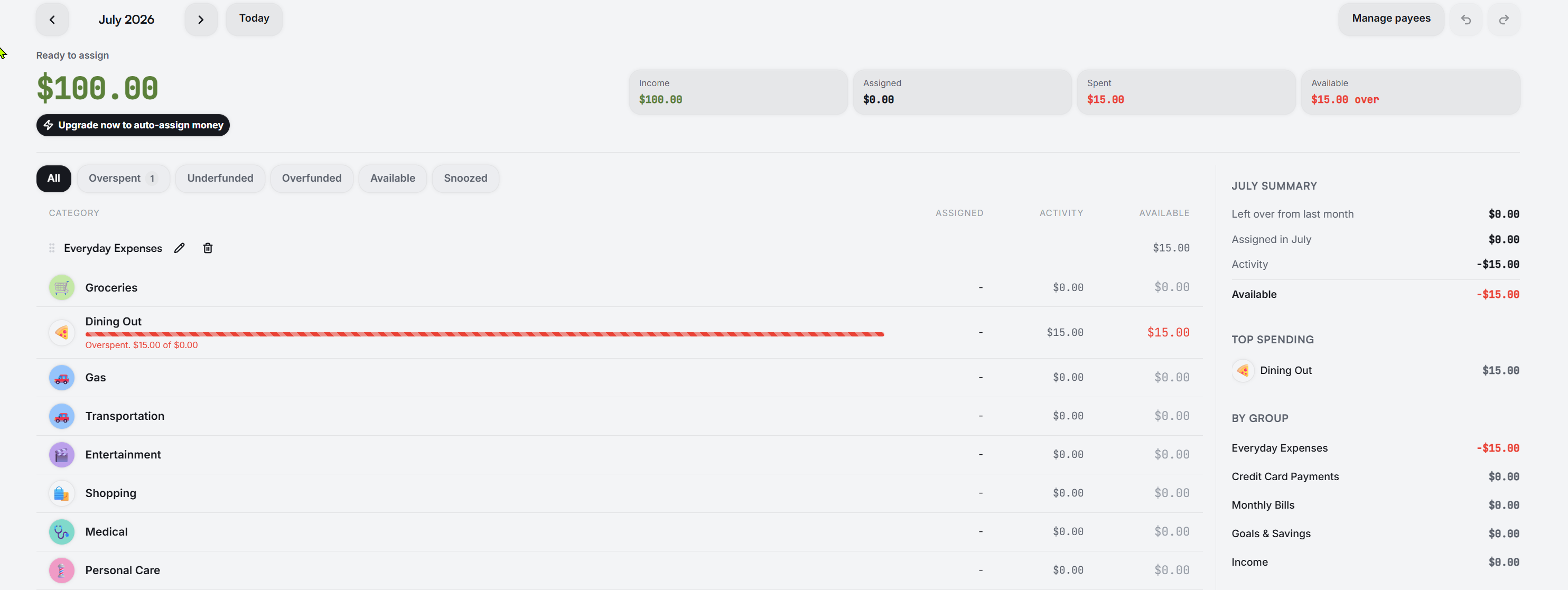
The purchase counts as Dining Out spending right away. Because Dining Out had no money assigned, it becomes $15 overspent. Ready to Assign stays at $100 for now because no cash has been given a job yet.
3. Cover the overspending
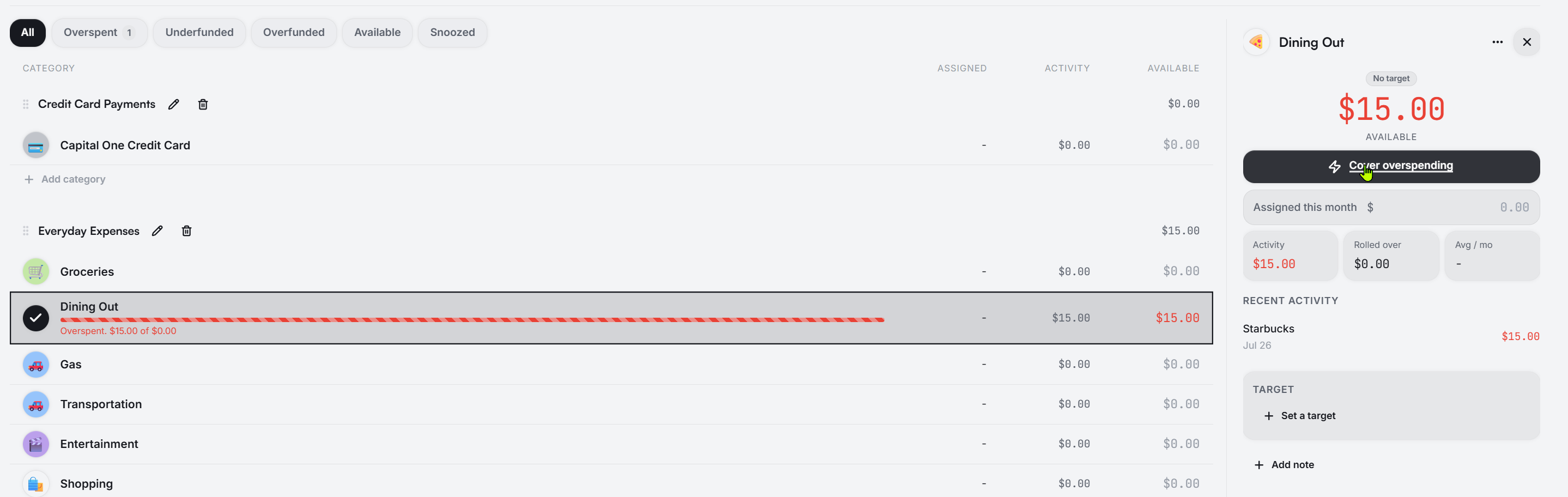
Open Dining Out and choose Cover overspending. Pocketwatch assigns the exact $15 needed. Ready to Assign falls from $100 to $85, and Dining Out returns to $0 available.
4. The cash is reserved for the card
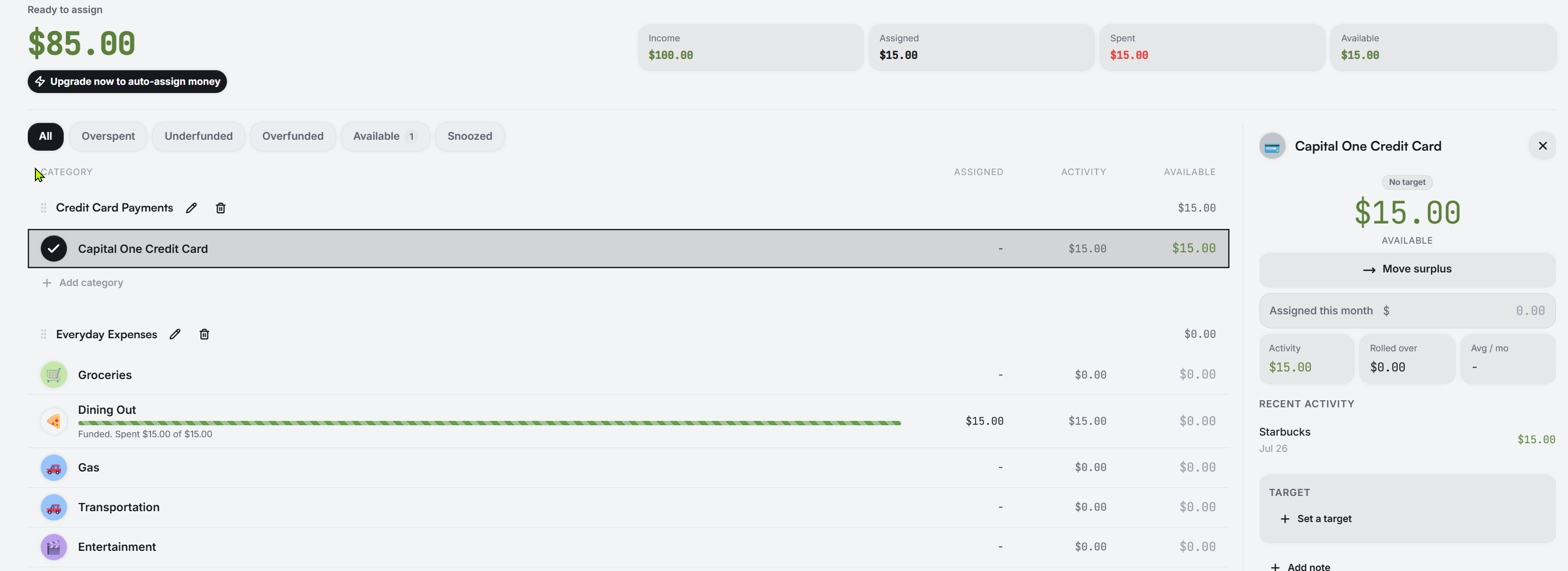
Once the purchase is covered, Pocketwatch shows $15 available beside the Capital One card in Credit Card Payments. This is not extra money. It is the same $15 you assigned to Dining Out, now marked as waiting for the card payment.
5. Pay the card from checking
Record the payment as a transfer from checking to the credit card. Checking falls from $100 to $85. The card balance moves from -$1,515 back to -$1,500 because $15 of the debt was paid.

6. The reserved money is used up
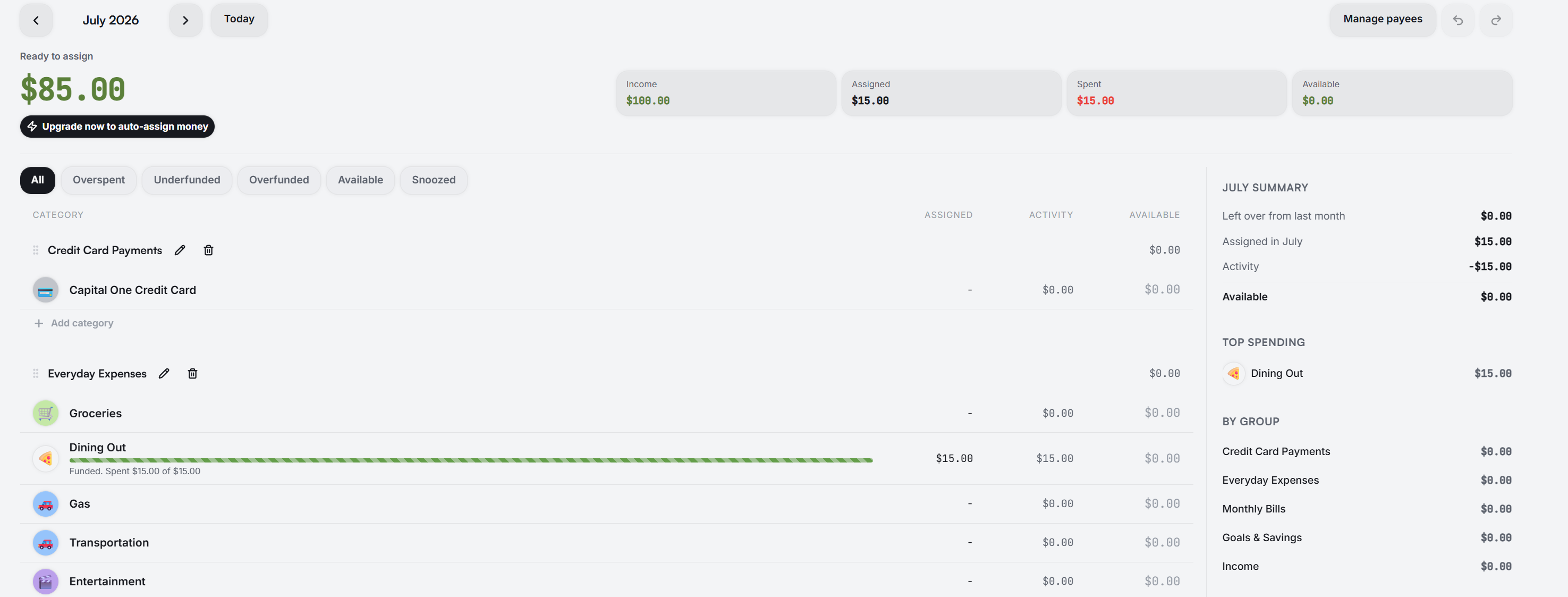
After the payment, the Capital One payment category returns to $0. Dining Out is also at $0 because its $15 assignment covered its $15 purchase. Ready to Assign remains $85. The $15 was counted once, when you covered Dining Out.
What if you move the reserved money back?
You can choose Move surplus on a card payment category. This tells Pocketwatch that the cash should no longer be reserved for the card. It can be useful when you are intentionally carrying debt, but it changes what happens if you pay the card afterward.
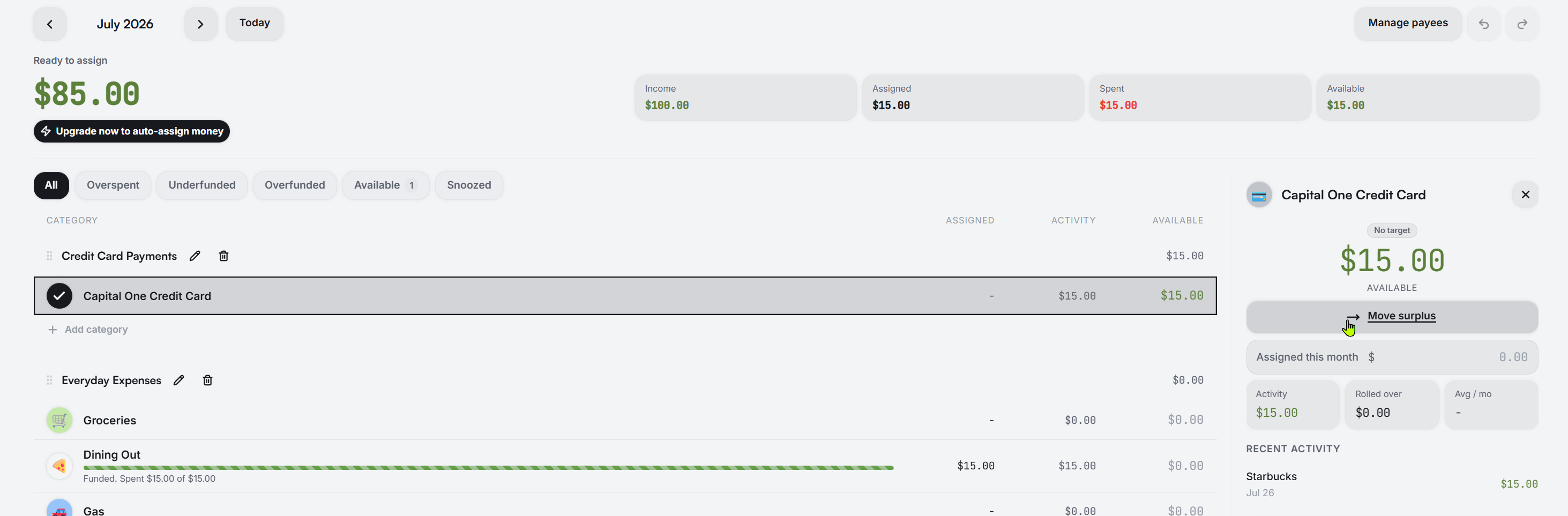
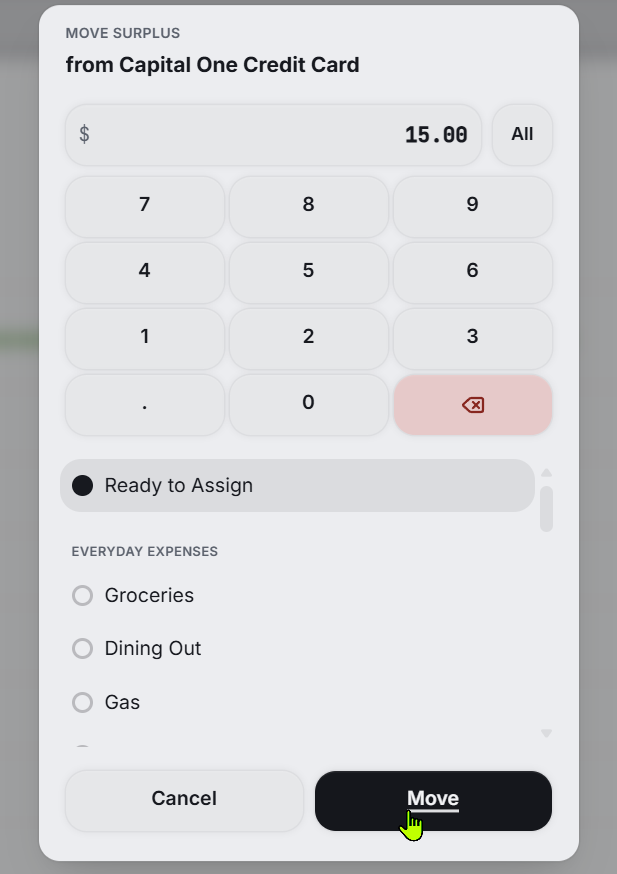
Move the $15 to Ready to Assign
Choose Ready to Assign as the destination and move all $15. The card payment category falls to $0, and Ready to Assign rises from $85 back to $100.
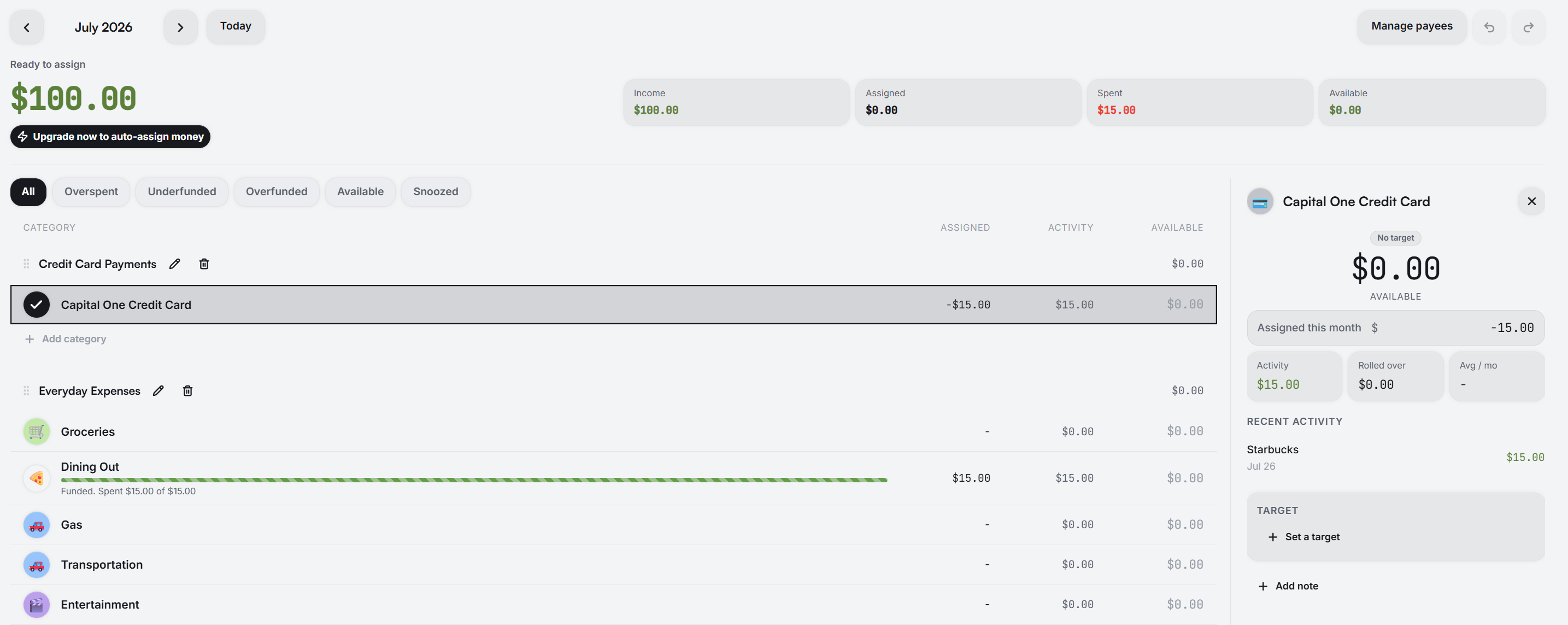
Paying without reserved cash creates a shortfall
If you now make the same $15 payment, checking still sends $15 to the card. The account balances update normally, but the budget has no reserved cash waiting for that payment.

The Capital One payment category becomes $15 negative. That is Pocketwatch showing that $15 left checking without $15 being set aside for the payment.

What about debt you already had?
An opening card balance, like the original $1,500 in this example, came from purchases made before Pocketwatch was tracking the budget. Pocketwatch does not automatically reserve cash for it. When you want to pay down old debt, assign the payment amount directly to the card in Credit Card Payments, then record the transfer from checking.
A few useful details
- Partly covered purchase: if you cover only part of a card purchase, only that part is reserved for the card payment.
- Refund: a refund lowers what you owe and releases money that no longer needs to be reserved for that purchase.
- Line of credit: it follows the same flow as a credit card because you can spend from it, carry a balance, and pay it down.
- Negative card balance: negative means money owed. A charge makes it more negative, while a payment or refund brings it closer to zero.
Last updated July 26, 2026